In the previous post I tried to validate my HTML in the VS.NET designer for HTML usingmy own custom validations.While this proved quite helpful, I felt a deep need of intellisense in VS.NET for my objects and hense decided to implement the same.After a bit of googling and researching, I could find a possible way of implementing the same.Here's how it goes.As we all know, VS 2005 implements Intellisense using the XSD files. So the idea was to provide VS IDE with my own XSD so that it could use that XSD instead of the default one.The process involved the following steps:1. Create your custom XSD:2. Make this XSD available to VS.NET IDE3. Using the custom XSD1. Create your custom XSD:Since I was creating intellisense for HTML, I always required the default HTML intellisense and a few of my own. So I decided to use the XSD that VS IDE uses to provide intellisense in HTML view. Those XSDs could be found located at "%vsInstallDir%\Common7\Packages\schemas\html"
Here, since my IDE was using IE6_0.XSD, I decided to make a copy of it and make my own XSD out of it, so that I could get all the custom HTML intellisense. So I copied IE6_0.XSD and created "MyCustom.XSD"
Now to that XSD I made some changes that I required. For example, when you have a TD tag in the HTML, you do not have an attribute called TYPE. I required an attribute TYPE which could have two possible values: DATA / AGGREGATE.
So basically I required my TDs to be somewhat like :
<TD type="Data"/> OR <TD type="Aggregate"/>
So to attain this, following changes were made to the MyCustom.xsd
At the location where element TD is defined, add a new Attribute Group called
"cellTypeAttributeForHiText" (You can have any name you like).

Next we need to create this Attribute group called "cellTypeAttributeForHiText". For this we can define a new Attribute group as in the picture.

While creating this Attribute group, we would be creating a simple type that would provide us the dropdown list in the intellisense when we write "Type=" in the IDE.

Apart from these, there are a couple more changes that are required so that the IDE distinguishes between the two schemas.
<xsd:schema version="1.0" targetNamespace='http://schemas.microsoft.com/intellisense/MyCustomSchema'
xmlns='http://schemas.microsoft.com/intellisense/MyCustomSchema'
xmlns:xsd='http://www.w3.org/2001/XMLSchema'
xmlns:vs='http://schemas.microsoft.com/Visual-Studio-Intellisense'
vs:clientom="ie6_0dom.tlb"
vs:ishtmlschema="true"
vs:isserverschema="false"
vs:htmlflavor="4.0"
vs:MultipleScriptLanguages="true"
vs:cssschema="CSS 2.1"
vs:SuccinctFriendlyName="My Custom Schema">
SO now we are all done with the changes. We have a well made XSD to use with our IDE.
2. Make this XSD available to VS.NET IDE
In order to make this XSD available to VS IDE, we need to perform two steps.
- Firstly copy the XSD file to the location where the default XSDs for IDE are located.
- Secondly make a registry entry to register this schema with the IDE. For this, create a .reg file with the following text:
[HKEY_LOCAL_MACHINE\SOFTWARE\Microsoft\VisualStudio\8.0\Packages\{1B437D20-F8FE-11D2-A6AE-00104BCC7269}\Schemas\Schema 21]
"Friendly Name"="My Custom Schema"
"URI"="http://schemas.microsoft.com/intellisense/MyCustomSchema"
"File"="html\\MyCustom.xsd"
Running this script would add the information to the Registry and would register the schema to the VS.NET IDE.
One thing to note here is that I have hardcoded the name SCHEMA21. This was because on my machine, I had 20 Schemas already loaded. By default, VS.NET creats 20 schemas and hense we need to maintain the order to get the schema working. Hense the number.
3. Using the custom XSD
Once we close the IDE and reopen it, now this Schema would always be available to the IDE. For using this, goto the IDE, open the HTML designer and you would see a dropdown on the toolbar of the IDE for selecting TARGET SCHEMA FOR VALIDATION
In the dropdown we will find our custom schema listed and by selecting that schema, we could now have intellisense from our own XSD file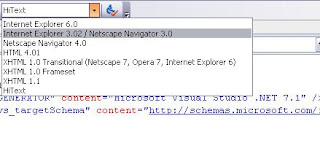
I would thank Mikhail Arkhipov for the help he provided


